You can save time by importing a large number of locations at once via a CSV file. To get started, open Maps > Import from your site's admin portal.
This will open the following page (right-click and open the image in a new tab to view in higher resolution).
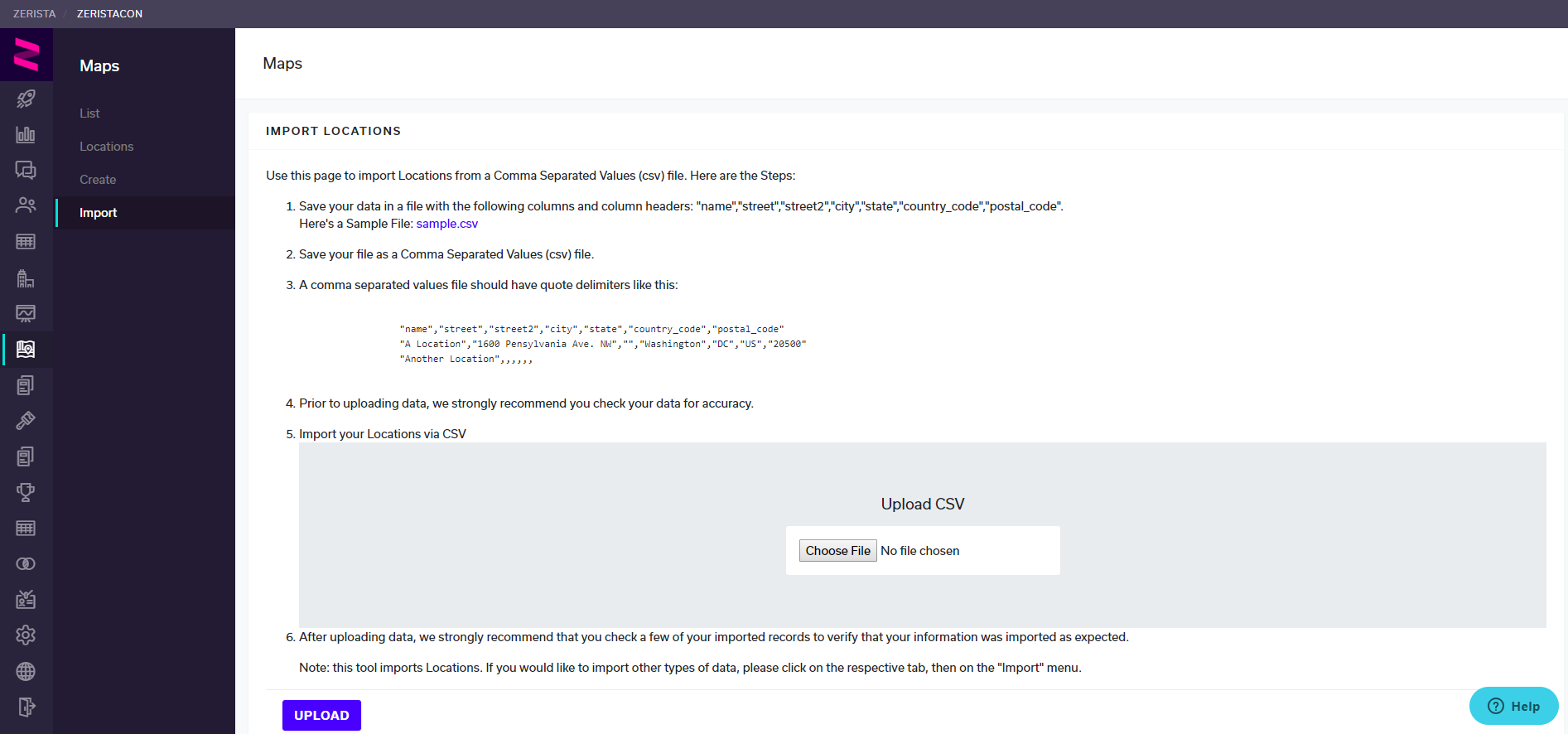
Download the sample.csv file and add in your data. The name of the location is what matters most.

Once you're done filling out your location spreadsheet, save the file as a CSV. Then, go back to Maps>Import in admin, add your file, and click Upload.
In mere moments, you will receive an email confirming that your upload was successful. Any errors or duplicates will be indicated in an attached file in that email.
You can then check your work in Maps>Locations:
 Unfortunately, you cannot import Capacity or Meeting Capacity settings at this time.